About Canopy
Canopy is a node-based editor for trees, plants and foliage. Build a plant from nodes, shape it with modifiers, watch it sway in the wind, and export it ready for games and films. It runs in the browser, on Windows and on Android tablets.
Created by Amanpreet Bajwa, with passion and AI. From an artist, for artists.
How Canopy works
A plant is a graph of nodes. A Spline node is one part of the plant: a line (its length and steps, bent by modifiers), where those lines start (Placement), what wraps them (a tube, leaf blades or cutout leaves), how they look (a material) and how they move (wind). A Mesh node is a solid shape placed as copies, which other parts can also grow on.
Connect a node's Children output to another node's Parent input to grow the second from the first. Each setting can vary from copy to copy (±) and follow a curve along its line or up the chain (〜). A setting's sockets start hidden: right-click a value to expose it, copy, paste or reset it.
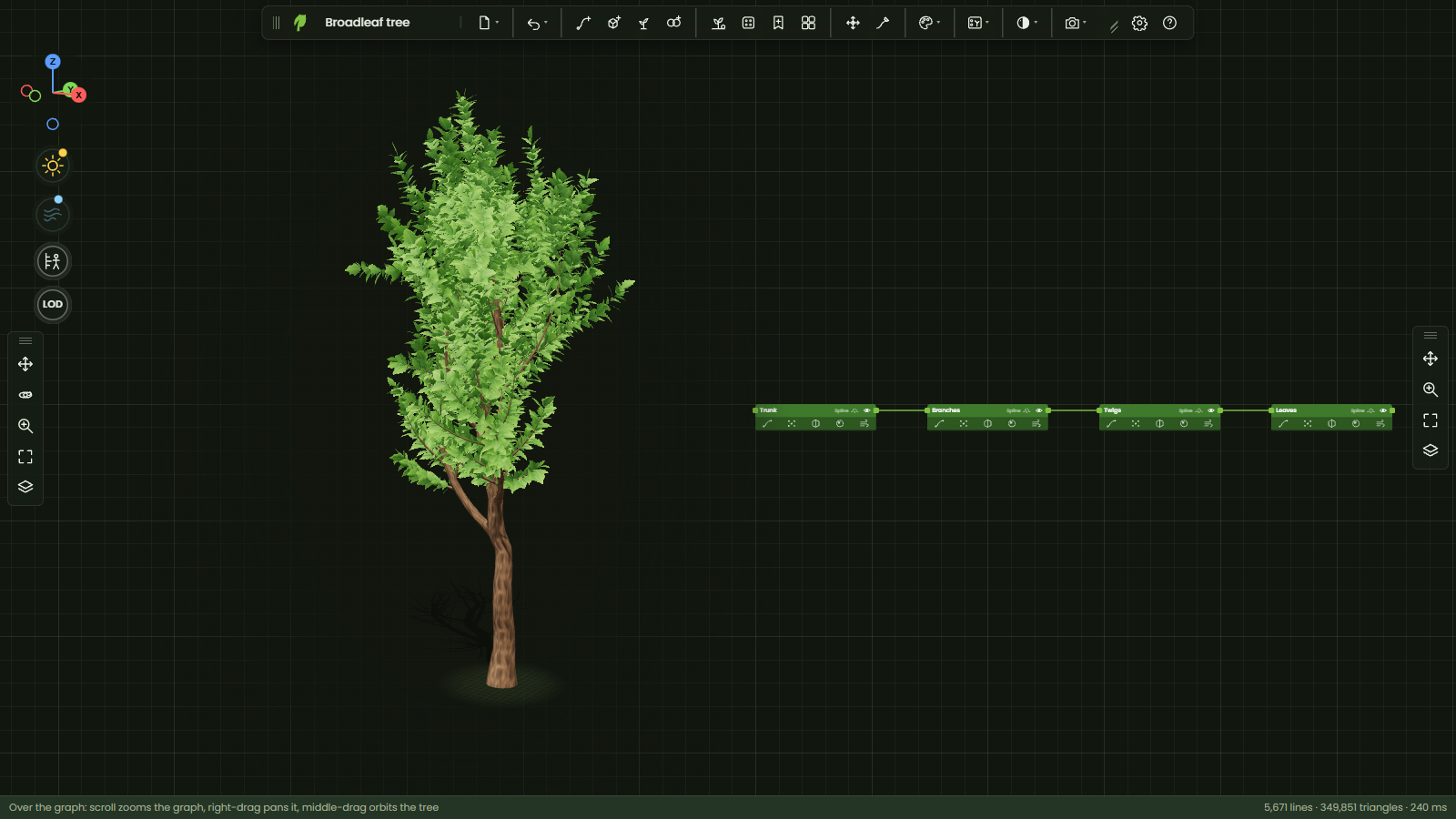
The editor
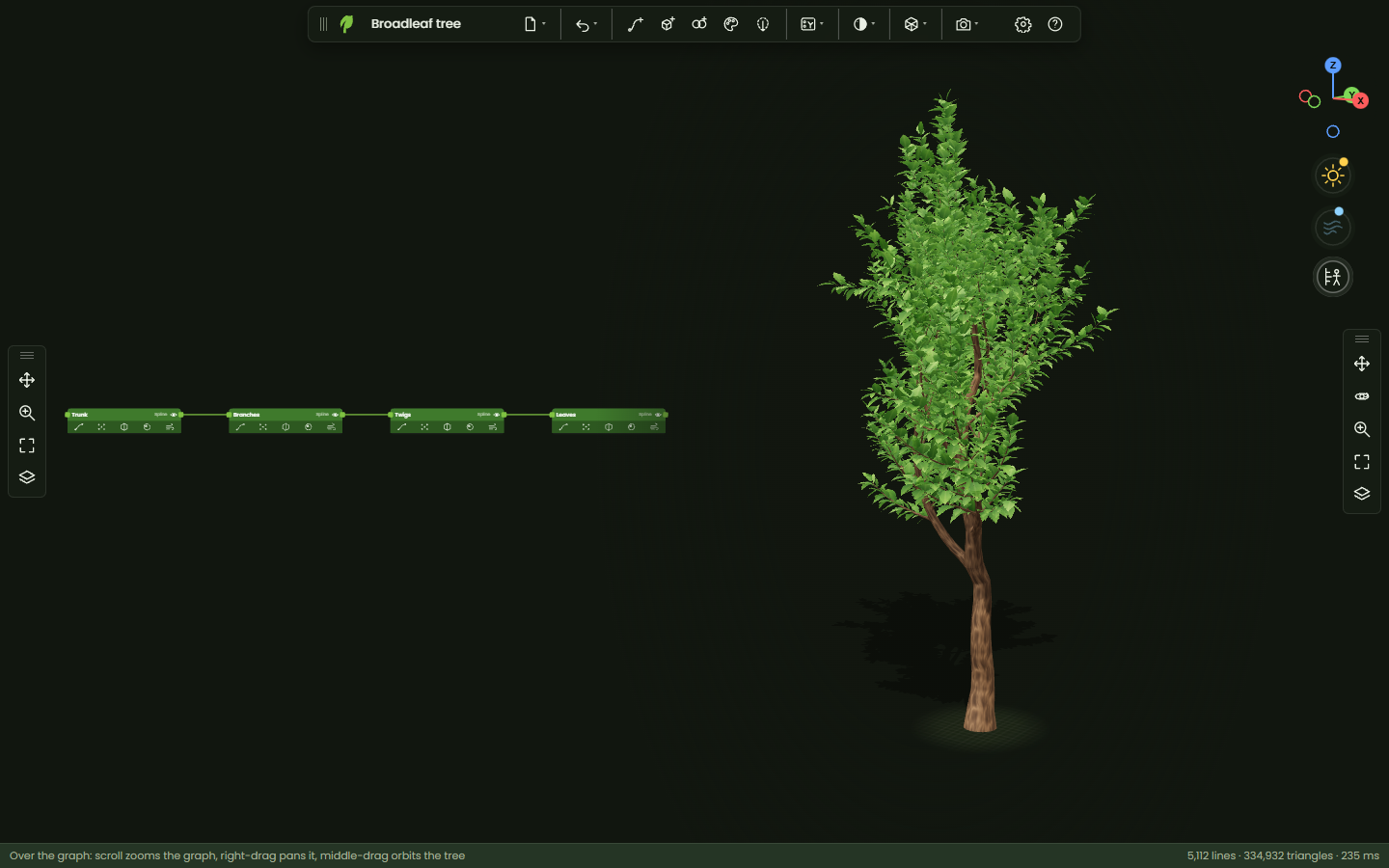
- Toolbar (top) — File (new, open a file or a sample, save, backup, import, export), undo and redo, add a Spline, Mesh or Mix node, materials and the cutout editor, layout, shading, wireframe, and Render · Bake · Pack. Each group can be folded into one button or hidden in Settings › Toolbar. Drag its grip to dock it on any edge; scroll it, resize it into rows from its end, or click the leaf to fold it away.
- Node graph (right; Settings can swap the sides) — the plant as nodes. A node's eye switches it on and off; its tabs hold its settings. Right-click empty space to add a node.
- 3D view (left) — the plant itself. Click a part to pick its node.
- Navigation icons — pan, zoom and frame each view without a mouse; drag their grip to dock them on a wall.
- Gizmo and dials (top corner of the 3D view) — click an axis to look along it; the dials turn the light and the wind (click the middle to switch one off); the ruler shows the scale figure.
Working in Canopy
Saving and backups
- Save writes over the file you have open. Save As picks a new name or place.
- Canopy makes a project folder in your Documents (Documents/Canopy). It holds your backups and temporary files.
- Automatic backup runs every 15 minutes; change it in Settings › System. A plant that was never saved backs up as Canopy-YYMMDD_HHMM.canopy; a saved one as <file name>_YYMMDD_HHMM.canopy.
- In the browser, a backup is a download, so Canopy asks first.
Welcome window
The Welcome window opens when Canopy starts. You can turn it off there.
Windows and panels
Move any window by its title bar and resize it from its corner. Canopy remembers each size and place until you press Reset the layout in Settings › Interface.
Status bar and tooltips
The bar at the bottom shows what is under the pointer (a node, a tab, a value) and what each tool does. Set its size or turn it off in Settings › Interface. Hover tooltips can be turned off, and their delay changed (3 s to start).
Variation
Each value's ± box has two modes:
- Percent — varies by a share of the value. It does nothing to a value of 0.
- Absolute — adds or takes away up to that amount. It works even at 0.
Settings can give every new node a starting variation, for example 10%.
Shortcuts
Settings › Shortcuts lists every shortcut and lets you change them. Some commands start without a key, so you can add your own. Settings › Navigation can open tabs and toolbar lists when you hover over them.
Units
Pick metres, centimetres, millimetres, or feet and inches (as decimals or fractions) in Settings › System.
Scale figure
A figure stands beside the plant to show its size: from a squirrel (25 cm) to a giraffe (5.5 m) and a Sauroposeidon (18 m). Pick which ones show in Settings › 3D view.
Plant parts
Spline
One complete part of a plant: a line, where it starts, what wraps it, how it looks and how it moves. Connect a parent to grow it from another Spline or Mesh.
Spline tab
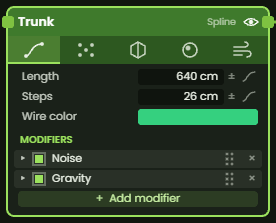
The line itself: length, segments and its modifiers.
- Length cm · starts at 300 · can vary ± and follow a curve
- Segments — Relative: a point every Segment length, so longer lines get more. Absolute: every line gets the same number of segments. starts at relative
- Segment length cm · starts at 25 · can vary ± and follow a curve
- Segment count starts at 12
- On parent surface — Lines on a parent start on its bark, by its thickness, instead of at its center line. starts at true
- Align with parent — Each one lines up square to its parent, like the ribs of an umbrella: blades lie flat across the parent and keep that at any angle the parent has. Off, their sides lie level with the ground. starts at true
- Wire color starts at #35d07f
- Modifiers
Placement tab
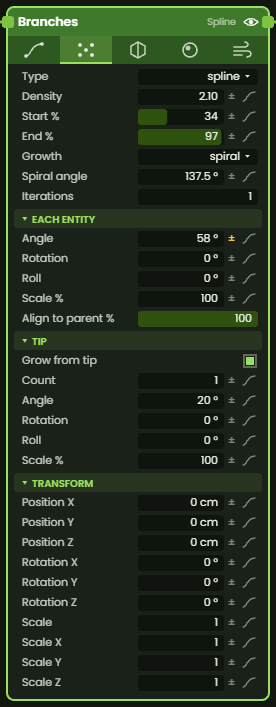
Where lines start: from a point, along a line, in a ring, as an urchin (a ball of lines), or on the parent. Each entity, the tip and the transform open from their headings.
- Type — Connecting a parent picks Spline or Mesh for you. Point, Line, Ring, Grid and Urchin then start at the tip of each parent line. starts at point
- Count starts at 1 · can vary ± and follow a curve
- Direction
- Length cm · starts at 200 · can vary ± and follow a curve
- Radius cm · starts at 100 · can vary ± and follow a curve
- Placement — Edge sits on the circle; Inside fills it. On Inside, curves run from the center to the edge. starts at edge
- Columns starts at 4
- Rows starts at 4
- Spacing cm · starts at 100
- Row spacing — 0 uses the same as Spacing. cm · starts at 0
- Jitter % — Moves each one off its spot by up to this share of the spacing. starts at 0
- Stagger rows — Shifts every other row by half a spacing, like bricks. starts at false
- Radius cm · starts at 50 · can vary ± and follow a curve
- Height cm · starts at 100 · can vary ± and follow a curve
- Start % starts at 0
- End % starts at 100
- Align starts at radial
- Factor — What curves on this part run along, from 0 to 1: along the parent leaf, the order the points were placed in, or from their middle outward. starts at along
- Sprout level — Grow only from sprout points of this level (set in the cutout editor). 0 uses every level. starts at 0
- Spacing — Even keeps a minimum distance between entities. starts at even
- Amount — Density puts more on a longer parent; Count puts the same number on each parent, whatever its length. starts at density
- Density — Lines per reference length starts at 8 · can vary ± and follow a curve
- Count — How many on each parent line, spread between Start and End. starts at 5 · can vary ± and follow a curve
- Start % starts at 15 · can vary ± and follow a curve
- End % starts at 100 · can vary ± and follow a curve
- Growth — Pairs grow opposite each other, level; alternate pairs turn each pair a quarter turn from the last. starts at spiral
- Spiral angle ° · starts at 137.5 · can vary ± and follow a curve
- Per whorl starts at 3
- Iterations starts at 1
- Factor — What curves on this part run along, from 0 to 1: bottom to top between Height from and to, or the order they are placed in. starts at height
- On the mesh — Random spreads them over the surface; Faces puts one on each face, Vertices one on each point; Layers lays rows around it from the bottom up, like roof tiles. starts at random
- Layers starts at 8
- Per layer starts at 8
- Axis — The layers stack along this axis, Z up, and ring around it. starts at Z
- Stagger layers — Each row sits between the ones below it, like tiles. starts at true
- Follow normal % — At 100 lines follow the mesh surface. At 0 they point straight up. starts at 100
- Min distance cm · starts at 5
- Noise prune % — Removes patches using soft noise. starts at 0
- Prune scale cm · starts at 50
- Height from % starts at 0
- Height to % starts at 100
- Max slope — Only surfaces within this angle of straight up. ° · starts at 180
Each entity
- Angle — Pitch: leans away from the parent, outward. ° · starts at 0 · can vary ± and follow a curve
- Rotation — Yaw: turns where it sits around the parent line. In pairs and alternate growth the other side turns the opposite way, like wings. ° · starts at 0 · can vary ± and follow a curve
- Roll — Turns it on its own axis, the way it heads. Mirrored on the other side of pairs. ° · starts at 0 · can vary ± and follow a curve
- Scale % starts at 100 · can vary ± and follow a curve
- Follow parent scale % — Takes on the size its parent was given (by its own Scale, its curves and variation): at 100 a part on a half-size branch is half size too, tips included. Needs a parent. starts at 0
- Align to parent % — At 100 every line lies the same way round its parent. Lower values turn each line by a random amount. starts at 100
Tip
- Grow from tip starts at true
- Count starts at 1 · can vary ± and follow a curve
- Angle ° · starts at 15 · can vary ± and follow a curve
- Rotation ° · starts at 0 · can vary ± and follow a curve
- Roll ° · starts at 0 · can vary ± and follow a curve
- Scale % — Its variation gives each tip its own size. starts at 100 · can vary ± and follow a curve
Transform
- Axes — Local moves, turns and scales each entity along its own axes: X to its side, Z the way it heads. World uses the view gizmo's axes, Z up. starts at local
- Position X cm · starts at 0 · can vary ± and follow a curve
- Position Y cm · starts at 0 · can vary ± and follow a curve
- Position Z cm · starts at 0 · can vary ± and follow a curve
- Rotation X ° · starts at 0 · can vary ± and follow a curve
- Rotation Y ° · starts at 0 · can vary ± and follow a curve
- Rotation Z ° · starts at 0 · can vary ± and follow a curve
- Scale — All three axes together. starts at 1 · can vary ± and follow a curve
- Scale X starts at 1 · can vary ± and follow a curve
- Scale Y starts at 1 · can vary ± and follow a curve
- Scale Z starts at 1 · can vary ± and follow a curve
Mesh tab
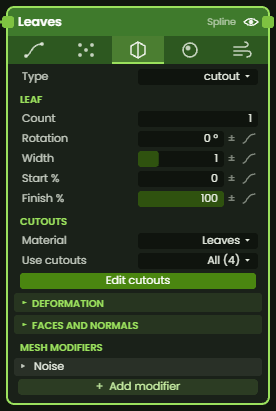
What wraps the line: a tube, leaf blades or cutout leaves.
- Type starts at tube
- Blend into the base — Starts each line a little inside the mesh it grows on; with Crop under branches on that Mesh, its surface opens where the branch enters. starts at false
- LOD reduction % — How much this part thins out in the lower LODs an export makes: tubes lose sides and segments, leaves get fewer and larger. 0 keeps it as it is in every LOD. starts at 100
Tube
- Tube material — With leaves on the same line, the tube can have its own material (bark); the Material tab is the leaves' one.
- Thickness cm · starts at 12 · can vary ± and follow a curve
- Sides starts at 10 · can vary ± and follow a curve
- Relative thickness — Keeps each branch no thicker than its parent times the factor. starts at false
- Factor starts at 0.65
Start and end
- Start % starts at 0 · can vary ± and follow a curve
- Finish % starts at 100 · can vary ± and follow a curve
- Rotation ° · starts at 0 · can vary ± and follow a curve
Caps
- Top cap starts at true
- Top segments — Rings from the rim to the middle. starts at 3
- Top height — In radii of the end: 1 with the round profile is a half ball. starts at 1
- Top profile — Height from the rim (left) to the middle (right). Flatten it for a flat cut.
- Top border — A flat ring of bark around the cap, as a share of the radius: the skin of a broken branch. starts at 0
- Bottom cap — Only where the tube does not blend into a parent. starts at false
- Bottom segments — Rings from the rim to the middle. starts at 3
- Bottom height — In radii of the end: 1 with the round profile is a half ball. starts at 1
- Bottom profile — Height from the rim (left) to the middle (right). Flatten it for a flat cut.
- Bottom border — A flat ring of bark around the cap, as a share of the radius: the skin of a broken branch. starts at 0
Blend
- Blend — Into the parent; a line with no parent blends into the floor, which flares a trunk. starts at true
- Height — How far up the blend reaches, in radii. starts at 1.6
- Spread — How far the base spreads over the parent or the floor, in radii. starts at 0.8
- Smoothness starts at 0.85
- Roots — Ridges around the base, like the buttress roots of a trunk; 0 spreads evenly. starts at 0
- Root depth — How much the roots stand out from the hollows between them. starts at 0.45
- Root turn ° · starts at 0
- Offset — Leans the spread to one side: the underside of a branch (a trunk toward Root turn). 0 is even; 1 puts it all on that side, leaving the other almost flat. starts at 0.5
- Parent collar — How much the parent swells around the joint, in branch radii starts at 0.35
- Sink % starts at 1
- Quality starts at 4
- Normal blend starts at 1
- Texture cross-fade starts at true
- Skip twigs under — Branches thinner than this share of the parent skip the blend to save triangles starts at 0.06
Leaf
- Count — Copies around the line, crossed evenly. starts at 1
- Rotation — Turns the leaf around its line. ° · starts at 0 · can vary ± and follow a curve
- Width — The outline across is the curve on this value. cm · starts at 8 · can vary ± and follow a curve
- Width — Widens or narrows the cutout, 1 as drawn. starts at 1 · can vary ± and follow a curve
- Start % starts at 0 · can vary ± and follow a curve
- Finish % starts at 100 · can vary ± and follow a curve
- Width segments starts at 1
- Blend into parent — Snaps the base of each leaf onto the surface of the branch it grows from. starts at false
- Blend height — How far up the leaf the blend reaches, in radii of the parent. starts at 2
- Blend spread — Widens the base as it meets the parent. starts at 0.5
- Blend smoothness starts at 0.5
- Blend sink % starts at 5
Cutouts
- Material
- Use cutouts
- Spread — Random picks any cutout for each leaf. By curve picks along the parent: the curve goes from base (left) to tip (right), low is the first cutout in the list, high the last. starts at random
- Pick curve
- Variation % — Shifts each pick up or down the list at random. starts at 0
Deformation
- Fold — Lifts both halves up from the midrib in a V. ° · starts at 12 · can vary ± and follow a curve
- Curl — Rolls the edges in (or out, below 0) as a smooth arc. ° · starts at 6 · can vary ± and follow a curve
- Angle — Tilts the whole leaf up or down from its line at the pivot. ° · starts at 0 · can vary ± and follow a curve
- Bend — Bends the leaf along its length; the tip has turned this far. ° · starts at 0 · can vary ± and follow a curve
- Twist — Turns the leaf around its midrib, more toward the tip. ° · starts at 0 · can vary ± and follow a curve
Faces and normals
- Flip normals starts at false
- 2-sided (for games) starts at false
- Soft canopy normals starts at 0.35
- Mesh modifiers
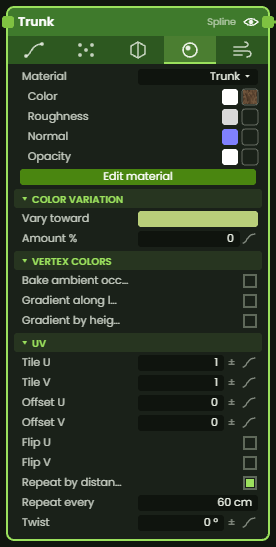
Material tab
Which scene material this uses, plus color variation, vertex colors and UVs.
Color variation
- Vary toward starts at #b9cf7a
- Amount % — How far each part leans toward the color. The curve sets it along the length. starts at 0 · can vary ± and follow a curve
Vertex colors
- Bake ambient occlusion — Darkens where surfaces crowd together, stored in the vertex colors. starts at false
- AO strength starts at 0.7
- Gradient along length starts at false
- Along length
- Gradient by height starts at false
- By height
UV
- Tile U starts at 1 · can vary ± and follow a curve
- Tile V starts at 1 · can vary ± and follow a curve
- Offset U starts at 0 · can vary ± and follow a curve
- Offset V starts at 0 · can vary ± and follow a curve
- UV angle — Turns the texture on the surface about the middle of the tile (a cutout: of its own patch). 90 lays it sideways. ° · starts at 0
- Fit — U fits the texture once around the tube, V once along its whole length. None tiles both. starts at none
- Tile from V — The texture below this is used once at the base (where the branch blends in); above it the part up to Tile to V repeats. starts at 0
- Tile to V starts at 1
- Flip U starts at false
- Flip V starts at false
- Even texel size — The trunk wraps the texture once around and repeats it at the same scale along; thinner branches take a smaller share so the bark looks the same size everywhere. starts at true
- Repeat by distance starts at true
- Repeat every cm · starts at 60
- Twist ° · starts at 0 · can vary ± and follow a curve
- Cap UVs — Continue runs the bark on over the caps; Disc lays a round patch of the texture on each, like the rings of a cut log. starts at continue
- Cap UV size — How much of the texture one cap covers: 1 is the whole picture. starts at 1
- Cap UV center U starts at 0.5
- Cap UV center V starts at 0.5
- Match leaf shape — Stretches the texture across the leaf outline instead of cutting it off. starts at false
Wind tab
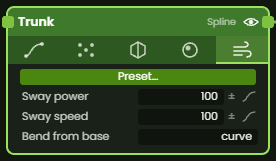
How this part sways: power, speed and how the bend builds up from its base.
- Sway power starts at 100 · can vary ± and follow a curve
- Sway speed starts at 100 · can vary ± and follow a curve
- Flutter — A quick shiver around the line, for leaves. starts at 60 · can vary ± and follow a curve
- Bend from base — How much of the bend each point along the line takes: none at its base, all at its tip.
Mesh
A sphere, rectangle, cone, disk or imported object. Place copies on a parent like fruit, or connect it as the parent of a Spline to grow things on it.
Mesh tab
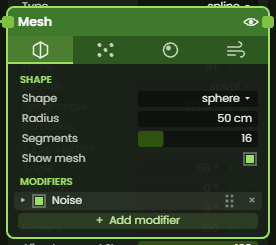
The shape: sphere, rectangle, cone, disk or an imported file, with its transform and modifiers.
Shape
- Shape starts at sphere
- Mesh file
- Radius cm · starts at 50
- Profile — The width at each height, bottom to top: its curve shapes the ball into an egg, a pear, a gourd or a bud. starts at 1 · can vary ± and follow a curve
- Top radius cm · starts at 0
- Height cm · starts at 100
- Size cm
- Bevel cm · starts at 5
- Segments starts at 16
- Show mesh — Off keeps it as something to grow on, without drawing it. starts at true
- Crop under branches — Cuts this mesh away where Splines with "Blend into the base" start on it, so a scanned trunk and the branches grown on it join as one surface. starts at false
- Modifiers
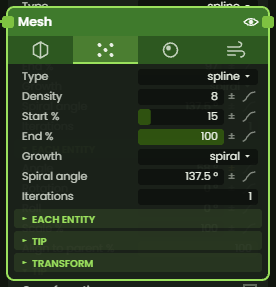
Placement tab
Where lines start: from a point, along a line, in a ring, as an urchin (a ball of lines), or on the parent. Each entity, the tip and the transform open from their headings.
- Type — Connecting a parent picks Spline or Mesh for you. Point, Line, Ring, Grid and Urchin then start at the tip of each parent line. starts at point
- Count starts at 1 · can vary ± and follow a curve
- Direction
- Length cm · starts at 200 · can vary ± and follow a curve
- Radius cm · starts at 100 · can vary ± and follow a curve
- Placement — Edge sits on the circle; Inside fills it. On Inside, curves run from the center to the edge. starts at edge
- Columns starts at 4
- Rows starts at 4
- Spacing cm · starts at 100
- Row spacing — 0 uses the same as Spacing. cm · starts at 0
- Jitter % — Moves each one off its spot by up to this share of the spacing. starts at 0
- Stagger rows — Shifts every other row by half a spacing, like bricks. starts at false
- Radius cm · starts at 50 · can vary ± and follow a curve
- Height cm · starts at 100 · can vary ± and follow a curve
- Start % starts at 0
- End % starts at 100
- Align starts at radial
- Factor — What curves on this part run along, from 0 to 1: along the parent leaf, the order the points were placed in, or from their middle outward. starts at along
- Sprout level — Grow only from sprout points of this level (set in the cutout editor). 0 uses every level. starts at 0
- Spacing — Even keeps a minimum distance between entities. starts at even
- Amount — Density puts more on a longer parent; Count puts the same number on each parent, whatever its length. starts at density
- Density — Lines per reference length starts at 8 · can vary ± and follow a curve
- Count — How many on each parent line, spread between Start and End. starts at 5 · can vary ± and follow a curve
- Start % starts at 15 · can vary ± and follow a curve
- End % starts at 100 · can vary ± and follow a curve
- Growth — Pairs grow opposite each other, level; alternate pairs turn each pair a quarter turn from the last. starts at spiral
- Spiral angle ° · starts at 137.5 · can vary ± and follow a curve
- Per whorl starts at 3
- Iterations starts at 1
- Factor — What curves on this part run along, from 0 to 1: bottom to top between Height from and to, or the order they are placed in. starts at height
- On the mesh — Random spreads them over the surface; Faces puts one on each face, Vertices one on each point; Layers lays rows around it from the bottom up, like roof tiles. starts at random
- Layers starts at 8
- Per layer starts at 8
- Axis — The layers stack along this axis, Z up, and ring around it. starts at Z
- Stagger layers — Each row sits between the ones below it, like tiles. starts at true
- Follow normal % — At 100 lines follow the mesh surface. At 0 they point straight up. starts at 100
- Min distance cm · starts at 5
- Noise prune % — Removes patches using soft noise. starts at 0
- Prune scale cm · starts at 50
- Height from % starts at 0
- Height to % starts at 100
- Max slope — Only surfaces within this angle of straight up. ° · starts at 180
Each entity
- Angle — Pitch: leans away from the parent, outward. ° · starts at 0 · can vary ± and follow a curve
- Rotation — Yaw: turns where it sits around the parent line. In pairs and alternate growth the other side turns the opposite way, like wings. ° · starts at 0 · can vary ± and follow a curve
- Roll — Turns it on its own axis, the way it heads. Mirrored on the other side of pairs. ° · starts at 0 · can vary ± and follow a curve
- Scale % starts at 100 · can vary ± and follow a curve
- Follow parent scale % — Takes on the size its parent was given (by its own Scale, its curves and variation): at 100 a part on a half-size branch is half size too, tips included. Needs a parent. starts at 0
- Align to parent % — At 100 every line lies the same way round its parent. Lower values turn each line by a random amount. starts at 100
Tip
- Grow from tip starts at true
- Count starts at 1 · can vary ± and follow a curve
- Angle ° · starts at 15 · can vary ± and follow a curve
- Rotation ° · starts at 0 · can vary ± and follow a curve
- Roll ° · starts at 0 · can vary ± and follow a curve
- Scale % — Its variation gives each tip its own size. starts at 100 · can vary ± and follow a curve
Transform
- Axes — Local moves, turns and scales each entity along its own axes: X to its side, Z the way it heads. World uses the view gizmo's axes, Z up. starts at local
- Position X cm · starts at 0 · can vary ± and follow a curve
- Position Y cm · starts at 0 · can vary ± and follow a curve
- Position Z cm · starts at 0 · can vary ± and follow a curve
- Rotation X ° · starts at 0 · can vary ± and follow a curve
- Rotation Y ° · starts at 0 · can vary ± and follow a curve
- Rotation Z ° · starts at 0 · can vary ± and follow a curve
- Scale — All three axes together. starts at 1 · can vary ± and follow a curve
- Scale X starts at 1 · can vary ± and follow a curve
- Scale Y starts at 1 · can vary ± and follow a curve
- Scale Z starts at 1 · can vary ± and follow a curve
Material tab
Which scene material this uses, plus color variation, vertex colors and UVs.
Color variation
- Vary toward starts at #b9cf7a
- Amount % — How far each part leans toward the color. The curve sets it along the length. starts at 0 · can vary ± and follow a curve
Vertex colors
- Bake ambient occlusion — Darkens where surfaces crowd together, stored in the vertex colors. starts at false
- AO strength starts at 0.7
- Gradient along length starts at false
- Along length
- Gradient by height starts at false
- By height
Wind tab
How this part sways: power, speed and how the bend builds up from its base.
- Sway power starts at 100 · can vary ± and follow a curve
- Sway speed starts at 100 · can vary ± and follow a curve
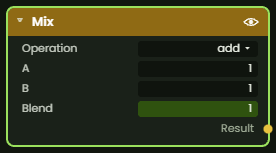
Blend
Blends two values with a math operation. Blend 0 gives A; 1 gives the full result. Each value has its own variation and curve.
Blend
- Operation starts at add
- A starts at 1 · can vary ± and follow a curve
- B starts at 1 · can vary ± and follow a curve
- Blend starts at 1 · can vary ± and follow a curve
Modifiers
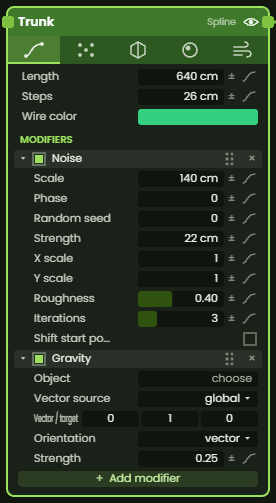
Modifiers sit in a list on a node's tab. The checkbox switches one on and off, the arrow opens its settings, the six-dot pad drags it up or down (the order matters: each works on what the one above made), and × removes it. + Add modifier adds one.
Spline modifiers
- Random — Bends each line in its own random direction.
- Start % — Where along the line it starts working. Its curves run from here (left) to End (right). starts at 0
- End % — Where along the line it stops working. The rest of the line carries on the way it was turned. starts at 100
- Smoothing cm · starts at 100
- Min angle ° · starts at 0
- Max angle ° · starts at 25
- Vector — Turns lines toward a direction, a point or a surface. Use it for gravity and for reaching to the light.
- Start % — Where along the line it starts working. Its curves run from here (left) to End (right). starts at 0
- End % — Where along the line it stops working. The rest of the line carries on the way it was turned. starts at 100
- Vector source starts at global
- Vector / target
- Orientation starts at vector
- Strength starts at 0.4
- Noise — Adds an organic wobble along each line.
- Start % — Where along the line it starts working. Its curves run from here (left) to End (right). starts at 0
- End % — Where along the line it stops working. The rest of the line carries on the way it was turned. starts at 100
- Scale cm · starts at 80
- Phase starts at 0
- Random seed starts at 0
- Strength cm · starts at 15
- X scale starts at 1
- Y scale starts at 1
- Roughness starts at 0
- Iterations starts at 3
- Shift start point starts at false
- Deviation — Kinks the line out toward each child, the way real wood zigzags at its forks.
- Angle from child vector — Kinks more toward children that leave at a wide angle. starts at false
- Angle ° · starts at 15
- Spread — How much of the line around each child moves. cm · starts at 20
- Warp — Bends lines along two drawn profiles: Shape A to the side, Shape B in Z.
- Start % — Where along the line it starts working. Its curves run from here (left) to End (right). starts at 0
- End % — Where along the line it stops working. The rest of the line carries on the way it was turned. starts at 100
- Shape A — The bend to the side (X), from base (left) to tip (right): higher than at the start bends one way, lower the other.
- Shape B — The bend in Z, the other way across the line.
- Orientation ° · starts at 0
- Variation angle ° · starts at 0
- Scale starts at 1
- Variation scale % starts at 0
- Droop — Sags under its own weight like a real branch: long and thin parts sag most, and the tip hangs down.
- Start % — Where along the line it starts working. Its curves run from here (left) to End (right). starts at 0
- End % — Where along the line it stops working. The rest of the line carries on the way it was turned. starts at 100
- Strength starts at 1
- Stiffness — Longer lines than this sag more, shorter ones less. cm · starts at 300
- Hard bend — One abrupt kink at a chosen position.
- Start % — Where along the line it starts working. Its curves run from here (left) to End (right). starts at 0
- End % — Where along the line it stops working. The rest of the line carries on the way it was turned. starts at 100
- Position % starts at 50
- Variation position % starts at 0
- Angle ° · starts at 40
- Variation angle ° · starts at 0
- Smoothness — 0 makes a sharp corner; higher rounds the bend over this length. cm · starts at 0
- Orientation ° · starts at 0
- Apply vector strength starts at 0
- Apply vector
- Wind animation — Sways the mesh live in the viewport. It costs almost nothing because it runs on the graphics chip.
- Stiffness cm · starts at 300
- Flexibility starts at 8
- Scale frequency starts at 1
- Amplitude multiplier starts at 1
- Wind direction
- Leaf flutter starts at 1.5
- Curl — Curls the line in on itself, tighter toward the tip.
- Start % — Where along the line it starts working. Its curves run from here (left) to End (right). starts at 0
- End % — Where along the line it stops working. The rest of the line carries on the way it was turned. starts at 100
- Turns — How many full turns the line curls; below 0 it curls the other way. The curve sets where along the line it curls. starts at 1
- Tighten % — Curls tighter toward the tip, like a fern bud. starts at 60
- Axis — Side curls across the line itself; X, Y and Z curl around an axis of the line (where it starts) or of the world. starts at side
- Axes — Local: the own axes of the line where it starts (X its side, Z the way it heads), so every line curls the same way round. World: the axes of the scene. starts at local
- Direction — Which way around the line it curls. ° · starts at 0
- Variation direction ° · starts at 0
- Copy direction — Makes a line follow the shape of its parent, like a vine.
- Radial offset cm · starts at 0
- Align children — Keeps child lines straight on a strongly curved parent. Place it before modifiers that curve the line.
- Radial — Rolls each line in a set direction along its whole length.
- Start % — Where along the line it starts working. Its curves run from here (left) to End (right). starts at 0
- End % — Where along the line it stops working. The rest of the line carries on the way it was turned. starts at 100
- Bend length — It bends by Angle over every this much of the line, all the way to the tip. cm · starts at 100
- Angle bend ° · starts at 45
- Orientation ° · starts at 0
- Spiral — Coils the line around its own direction or a world axis.
- Start % — Where along the line it starts working. Its curves run from here (left) to End (right). starts at 0
- End % — Where along the line it stops working. The rest of the line carries on the way it was turned. starts at 100
- Radius cm · starts at 15
- Turn angle ° · starts at 360
- Axis — Line coils around its own direction; X, Y and Z coil around an axis of the line (where it starts) or of the world. starts at line
- Axes — Local: the own axes of the line where it starts, so every line coils the same way round. World: the axes of the scene. starts at local
- Zigzag — Alternates the line from side to side.
- Start % — Where along the line it starts working. Its curves run from here (left) to End (right). starts at 0
- End % — Where along the line it stops working. The rest of the line carries on the way it was turned. starts at 100
- Angle — How sharply each step turns off the line. ° · starts at 25
- Variation angle ° · starts at 0
- Steps cm · starts at 25
- Axis — Which side of the line it zigzags to. starts at x
- Twist — Rolls the mesh around the line.
- Object reaction — Lines bounce off a scene object, or are pulled toward it.
- Reflection starts at true
- Reflection distance cm · starts at 40
- Prevent penetration starts at true
- Min distance cm · starts at 2
- Magnetic starts at false
- Magnetic distance cm · starts at 80
- Max strength % starts at 50
- Path reaction — Lines of this path push apart or pull together, which stops them crossing.
- Reflection starts at true
- Reflection distance cm · starts at 30
- Magnetic starts at false
- Magnetic distance cm · starts at 60
- Max strength % starts at 40
- Object slice — Cuts lines where they meet a scene object, to trim a plant to a shape.
- Distance cm · starts at 0
- Cap end override starts at none
- Erase the affected lines starts at false
- Collide — Lines meet the floor or a scene object: they lie along it, bounce off it or are trimmed where they touch.
- With — The floor at Height, or a scene object (an imported mesh) connected here. starts at floor
- Reaction — Attract lays the line along the surface, bounce turns it away, trim stops it there. starts at attract
- Floor height cm · starts at 0
- Distance — How far from the surface it reacts. cm · starts at 0
- Attract reach — From this far it starts bending onto the surface. cm · starts at 40
- Strength % starts at 100
- Erase the whole line starts at false
- Avoid — Keeps lines from running into lines grown before them (other branches, or earlier ones of this part): bends them away, pushes them aside, trims them, or removes them.
- Do — Bend turns the line away in a smooth curve where it meets another; Push moves its points aside; Trim cuts it where it first touches; Prune removes the whole line. starts at bend
- Against — Same node: lines of this node only. Other nodes: lines of other nodes only. starts at everything
- Clearance — Closer than this to another line counts as touching. Allow for the thickness of both lines. cm · starts at 8
- Falloff — From this far beyond the clearance it starts to react. cm · starts at 12
- Amount % — How hard it turns or is pushed away. starts at 100
- Bend radius — The tightest curve it turns away in: larger bends more gently. cm · starts at 25
- Spread — Smooths the push along the line over this length, so it bends instead of kinking. cm · starts at 20
- Ignore base — Near its base a line always touches its parent; this first stretch is left alone. cm · starts at 10
- Vector orientation — Rolls the line around itself so its face points along a vector. Good for leaves facing the sky.
- Vector
- Orient axis starts at y
- Strength % starts at 100
- Start / end slice — Removes length from the start and end of lines.
- Start slice cm · starts at 0
- Start count rate % starts at 100
- End slice cm · starts at 0
- End count rate % starts at 100
- Cap start override starts at none
- Cap end override starts at none
- Trim — Breaks lines off at random places, like snapped branches. The cut keeps its thickness, and what grew beyond it goes.
- Cut at % — How much of each line stays. Its curve runs along the parent, so lines can break shorter in one part of it. starts at 70
- Variation % — Moves each cut a random amount up or down the line. starts at 20
- Lines cut % — How many of the lines break; the others stay whole. starts at 100
- Optimize steps — Removes points on nearly straight stretches, saving triangles without changing the shape.
- Angle tolerance ° · starts at 4
- Eraser — Click lines in the 3D view to erase them. Use the panel to bring them back.
- Trim — Click a line in the 3D view to cut it there.
- Cap end override starts at none
- Override steps — Rebuilds the line with a new segment length.
- Steps cm · starts at 20
- Uniform steps starts at true
- Shape — Drag a line in the 3D view to reshape it.
Mesh modifiers
- Noise — Bumps the shape with soft noise.
- Strength cm · starts at 0 · can vary ± and follow a curve
- Scale cm · starts at 30
- Displacement — Moves the surface in and out using a texture.
- Texture
- Channel starts at R
- Strength cm · starts at 2
- Tile starts at 1
- Inflate — Pushes the surface out along its normals.
- Wave — Ripples the surface in bands.
- Strength cm · starts at 2
- Wavelength cm · starts at 40
- Jitter — Moves every point in or out by its own random amount, for a rough, hand-made surface.
- Amount cm · starts at 0.5
- Crumple — Crumples and folds each leaf or card from its corners, like an old dried leaf. The base stays where it grows.
- Amount — How deep the folds go. Variation changes it per leaf; the curve sets it from base to tip. starts at 0.5 · can vary ± and follow a curve
- Corner curl — Rolls the corners and edges up, or down below 0. starts at 0.3
- Wrinkles — Strength of small bumps over the surface. cm · starts at 0.2
- Wrinkle size — Smaller is finer wrinkles. cm · starts at 2
- Seed starts at 1
- Smooth — Relaxes the surface, softening sharp folds and steps.
- Strength starts at 0.5
- Passes starts at 2
- Subdivide — Splits every quad into four quads (and each triangle into four) for a finer, rounder surface. Smooth 0 keeps the shape exactly; 1 rounds it off.
- Levels starts at 1
- Smooth starts at 1
- Keep edges — Open borders, like a leaf outline, keep their shape. starts at true
- Thickness — Gives a flat sheet a back and sides, with the same UVs, so leaves and petals get real thickness.
- Thickness — Thickness as a share of the cutout width: 1 is as thick as it is wide. Can go above 1. Variation changes it per leaf; the curve sets it from base to tip. starts at 0.1 · can vary ± and follow a curve
- Edge pinch — 1 brings the outline to a thin edge; points inside keep the full thickness. The curve sets it from base to tip. starts at 0.5 · can vary ± and follow a curve
- Side pinch — How thin the side columns get: 1 brings the sides to a sharp edge. starts at 0.8
- Side width — How far in from each side the pinch reaches, as a share of the half-width. The middle stays flat. starts at 0.35
- Upper profile — The front face from the side (left) to the middle (right).
- Lower profile — The back face from the side (left) to the middle (right).
- Avoid intersections — Tilts or moves each leaf or card that runs into another so it clears it, pushes points out along their normals, or removes the parts that intersect.
- Do — Tilt turns each touching leaf or card around its base, or shifts its tip over or under the other; its base stays on the joint. Push moves points out along their normals. Prune removes each piece that hits another. starts at tilt
- Against — Same node: leaves against leaves of this node. Other nodes: against branches and other parts. starts at same node
- Clearance — Closer than this counts as touching. cm · starts at 2
- Falloff — Beyond the clearance the push fades out over this distance. cm · starts at 4
- Max tilt — The most a piece is turned to clear another. Wide cards need less. ° · starts at 30
- Amount — How far a touching point is pushed, or how far the tip of a piece may shift when tilting is not enough. cm · starts at 2
- Ignore base % — The first part of each piece, where it sits on its parent, is left alone. starts at 10
- Project — Wraps the surface onto a target mesh, like a shrinkwrap: each point moves to the nearest part of the target, or along its own normal until it meets it.
- Target
- Mode — Nearest surface moves each point to the closest spot on the target. Along normal looks out and in along the point normal. starts at nearest surface
- Offset — Keeps the surface this far off the target: above it when positive, below when negative. cm · starts at 0
- Strength — How far each point goes toward the target: 1 lands on it. The curve sets it from base to tip. starts at 1 · can vary ± and follow a curve
- Falloff — Fades the strength along each piece. starts at none
- Max distance — Points farther than this from the target stay put. 0 has no limit. cm · starts at 0
- Affects — Which lines of this node are wrapped: the first one is usually the trunk. starts at all
- Ripple — Rings spreading out from the middle of the plant, like wind across a canopy.
- Strength cm · starts at 1
- Wavelength cm · starts at 60
- Merge — Welds points closer than a distance into one, closing small gaps and cracks.
- Distance — Points closer than this become one. cm · starts at 0.1
- Keep UV seams — Points that meet but have different UVs stay apart in the UVs, so textures keep their seams. Off welds them fully. starts at true
- Remesh — Rebuilds the whole mesh as one even surface, so parts that touch or overlap blend into one. UVs, colors and wind come from the nearest part of the old mesh.
- Resolution — Cells along the longest side. Higher keeps more detail but is slower; thin parts need a high value. starts at 64
- Quad faces — Keeps the new faces as quads on export; off gives triangles. starts at true
- Snap to source — Pulls the new surface back toward the old one. 0 leaves it a little puffed out; 1 sits on it. starts at 0.5
- LOD — Thins this part out in the lower LODs an export makes. Replaces LOD reduction % on the Mesh tab.
- Reduction % — How much detail is gone by the last LOD an export makes. The curve sets it per LOD, from LOD0 (left) to the last LOD (right). starts at 80 · can vary ± and follow a curve
- Segments — Fewer points along each line. starts at true
- Sides — Fewer sides around each tube. starts at true
- Leaf count — Fewer leaves, each larger, so the crown keeps its look. starts at true
- Cards from LOD — Cutout leaves turn into plain cards from this LOD on. starts at 2
Shape modifiers
- Noise — Bumps the shape with soft noise.
- Strength cm · starts at 0
- Scale cm · starts at 30
- Apply to — Each copy bends on its own; all together bends the whole set of copies as one. starts at each copy
- Bend — Curves the shape around its height.
- Angle ° · starts at 45
- Direction ° · starts at 0
- Apply to — Each copy bends on its own; all together bends the whole set of copies as one. starts at each copy
- Twist — Turns the shape around its height.
- Angle ° · starts at 90
- Apply to — Each copy bends on its own; all together bends the whole set of copies as one. starts at each copy
- Taper — Narrows the shape toward the top.
- Amount % starts at 50
- Apply to — Each copy bends on its own; all together bends the whole set of copies as one. starts at each copy
- Inflate — Pushes the surface out along its normals.
- Amount cm · starts at 2
- Apply to — Each copy bends on its own; all together bends the whole set of copies as one. starts at each copy
- Wave — Ripples the surface in bands.
- Strength cm · starts at 2
- Wavelength cm · starts at 40
- Apply to — Each copy bends on its own; all together bends the whole set of copies as one. starts at each copy
- LOD — Fewer segments on the copies in the lower LODs an export makes. Replaces LOD reduction %.
- Reduction % — How much detail is gone by the last LOD an export makes. The curve sets it per LOD, from LOD0 (left) to the last LOD (right). starts at 80 · can vary ± and follow a curve
- Segments — Sphere, cone, disk and rectangle segments. Imported meshes stay as they are. starts at true
Exporting
The Export window picks the format (GLB, FBX, or OBJ in a zip), whether pictures are packed inside the file, and whether the plant goes out as one mesh, one mesh per node, or each piece on its own with its pivot at its base.
- Vertex colors — each of R, G, B and A can carry a gradient: height, along each branch, along each leaf, or a random number per piece.
- Pivot Painter 2 — two EXR textures (pivot position + parent index, X axis + extent); each piece points at its pixel in the second UV set.
- Vertex animation — the wind baked as offsets per frame into an EXR, read through the third UV set.
- Bone rig (GLB) — one bone per branch; leaves ride the branch they grow on.
Bake and Pack write texture maps. Each map has a checkbox in front and its settings under the arrow at its end: the suffix added to the file name, Dilate (bleeds colors past the edges so mipmaps don't show a fringe), and its own extras. The Packed texture puts any maps into one file's R, G, B and A.